
Subscribe to the C2C-Query API
The following steps are necessary to fully set up the API. After completing these steps, the API can be used according to your interests.
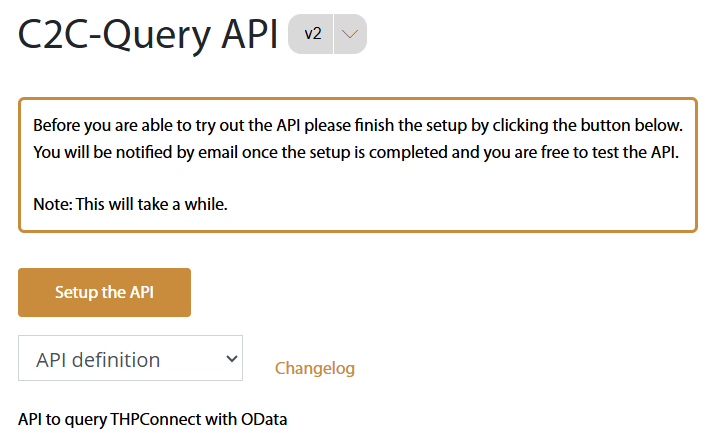
Setting up the API for the tenant
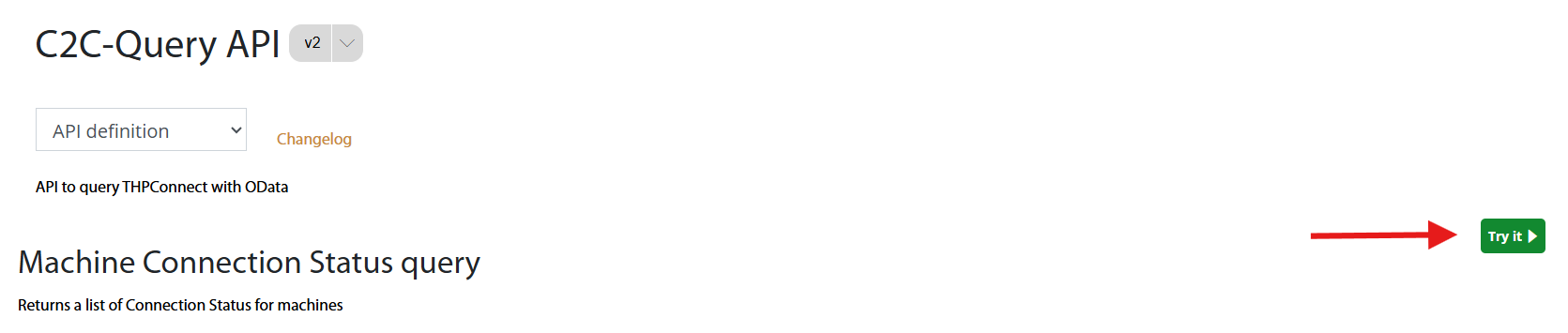
Please check if the setup of the API for your tenant needs to be finished. Click the button below. This will open the Query API page in a new tab. If you see the text and the button shown on the right here, follow the instructions and wait until the confirmation email is send to you.
Afterwards follow the rest of the instructions on this page.
Otherwise, if you don't see the text and button you are free to continue with the next steps.

1. Navigate to Products
Please navigate to the “Products” button in the top right corner of the window and select it.
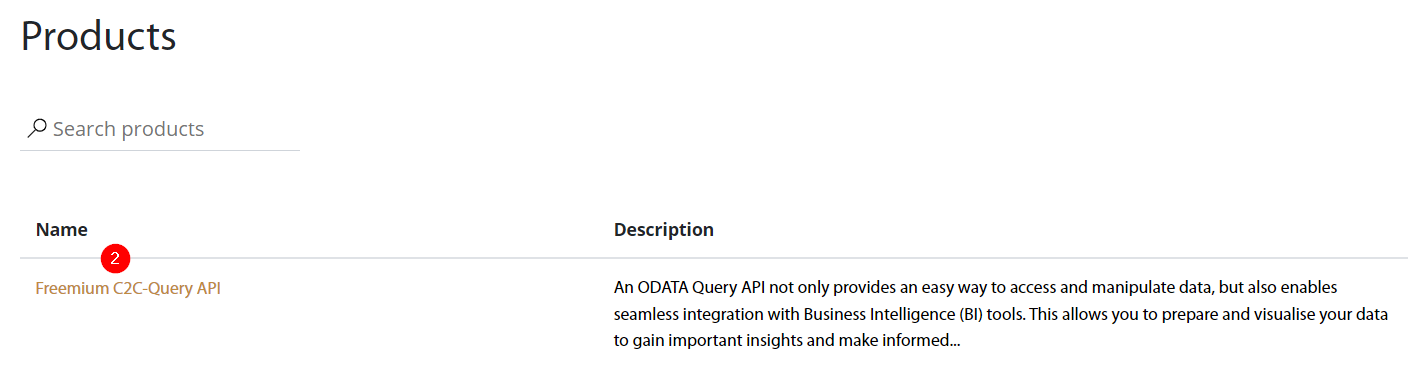
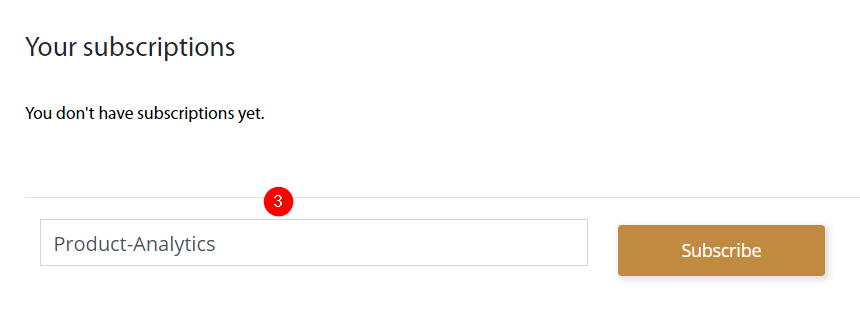
3. Subscribe your API
In this example, the name 'Product-Analytics' was chosen. You can choose any name for your API. It can be freely invented and is only used to identify your API. Since multiple APIs can be registered, the name will help you manage and distinguish your different APIs
4. Check email confirmation
Please check your email inbox for the confirmation email that the subscription has been successfully registered.
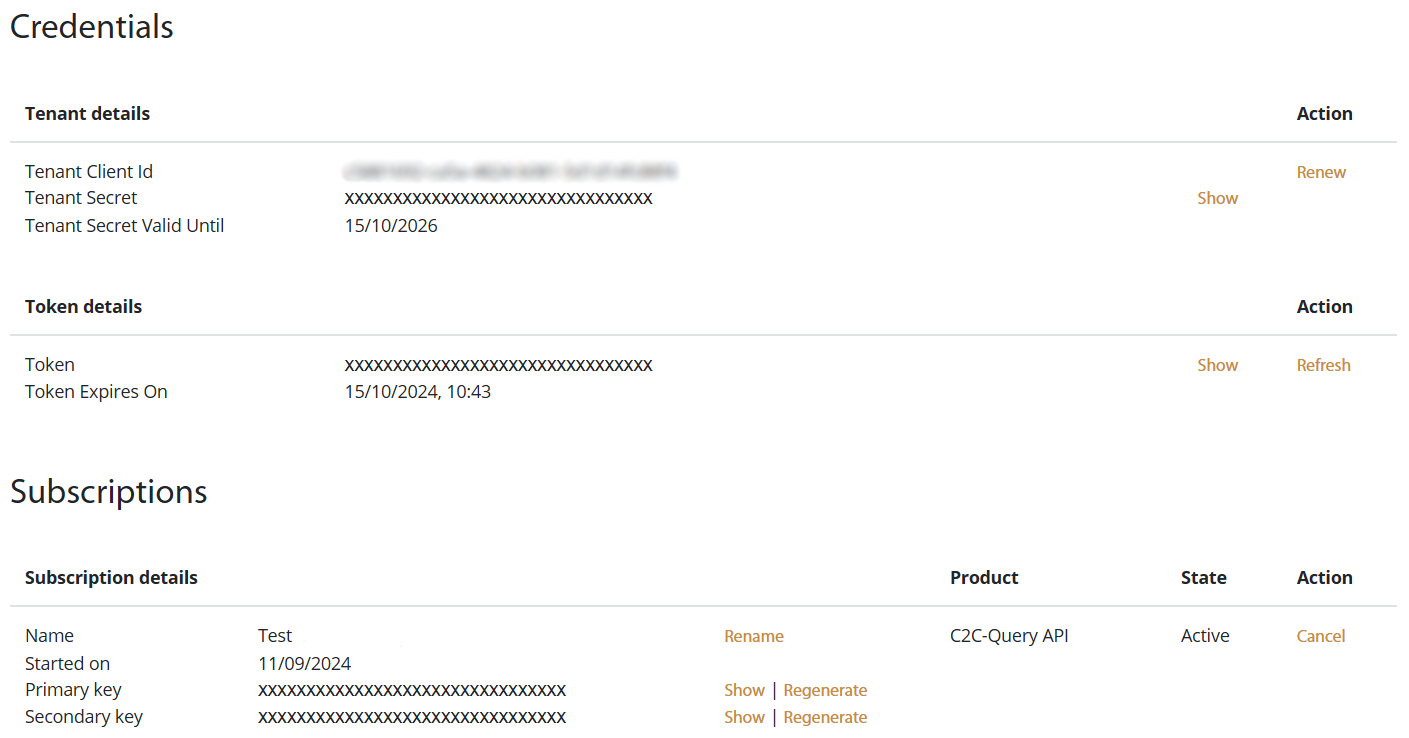
5. Use the credentials
You can now use the credentials. They can be found under the Profile tab or by clicking here.
6. Test the API
Click here to get to the C2C-Query API page or navigate to the 'APIs' button on the top and click the C2C-Query API version you would like to test. Then click on the 'Try it' button.
The header values for the Ocp-Apim-Subscription-Key and Authorization will be automatically filled in after a short while.
You can now scroll all the way down and click 'send'.
How to use the Query-Api
Generate Bearer Token
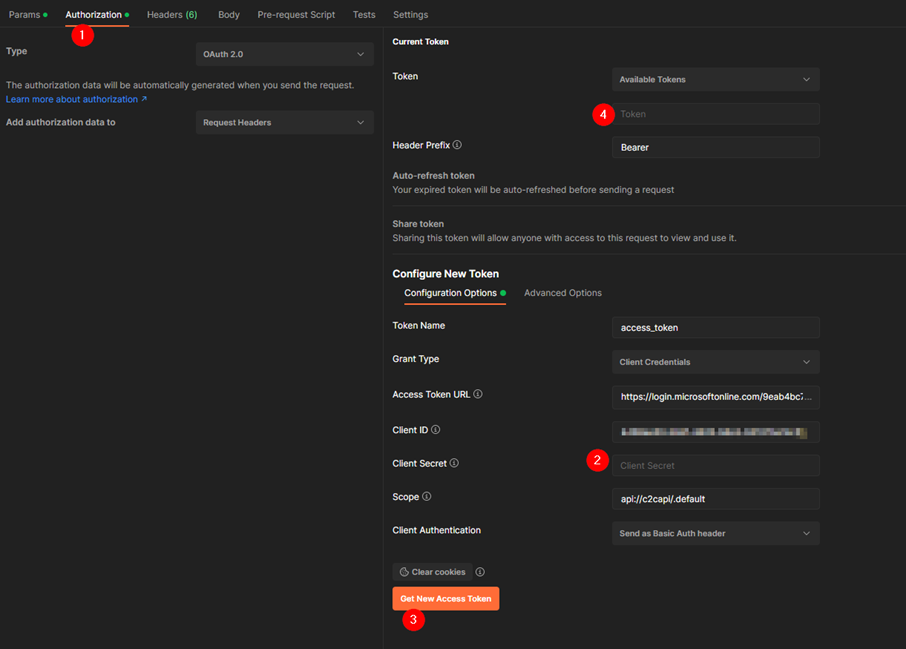
The example shown on the right is done with the Postman tool.
1. The “Client Credential” grant type is used for authorization. The URL for this is: https://login.microsoftonline.com/9eab4bc7-132f-4754-89a8-6d2b001e6c43/oauth2/v2.0/token
2. As 'Scope' set the value: api://c2capi/.default
3. As 'Client ID' and 'Client Secret' set the values found in the Credentials page under Query-API
4. Generate the token (with a click on the button in Postman)
5. The generated token is then visible in Postman and valid for 1 hour. It can be used to send queries to the Query-API.
Further information on authentication with Microsoft can be found here: https://learn.microsoft.com/en-us/azure/active-directory/develop/v2-oauth2-client-creds-grant-flow#get-a-token
Request Data from the Query-API
To send a request you need the following:
Token (generated or copied as shown before) set as 'Authorization' header (Postman will automatically fill this header)
Subscription-Key (can be found here) set as 'Ocp-Apim-Subscription-Key' header